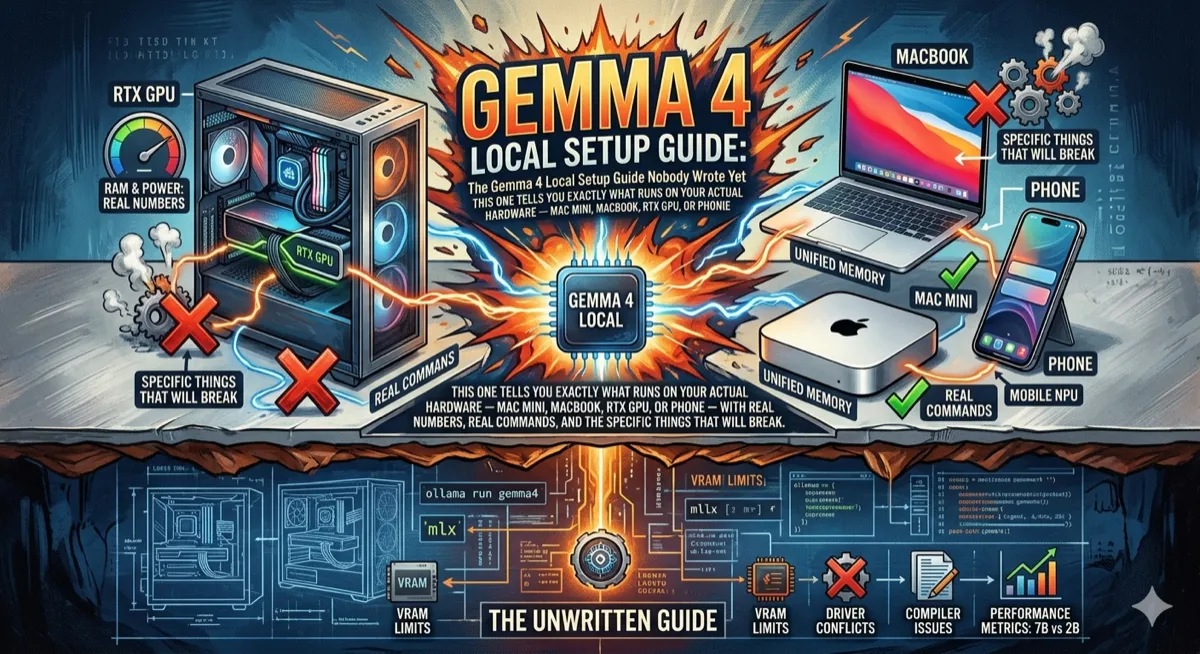
The Gemma 4 Local Setup Guide Nobody Wrote Yet
Every other article tells you Gemma 4 is amazing. This one tells you exactly what runs on your actual hardware — Mac mini, MacBook, RTX GPU, or phone — with real numbers, real commands, and the specific things that will break.
Local AI | Practical Guide | April 2026
~18 min read
| Hardware | Best Model | Speed | Size at Q4 |
|---|---|---|---|
| 8 GB RAM | E2B | ~95 tok/s | ~4 GB |
| 16–24 GB RAM | E4B | ~57 tok/s | ~5.5 GB |
| 32–48 GB RAM | 26B MoE | ~25 tok/s | ~16 GB |
| 80+ GB RAM | 31B | ~15 tok/s | ~18 GB |
Before you read: Token-per-second figures are community benchmarks from LM Studio and r/LocalLLaMA and vary significantly by hardware, quantization, and context length. Day-0 framework support is impressive but several early users are reporting tokenizer inconsistencies in some community quantizations — stick to official Ollama tags and the
google/org on Hugging Face until things stabilize.
Let’s be honest about what’s happening here. Gemma 4 dropped on April 2nd, everyone wrote about the benchmarks, and then most people moved on. What they didn’t write is the part that actually takes time: figuring out which model runs on your specific machine, why inference is crawling at 2 tokens per second when it shouldn’t be, and what the actual quality difference is between Q4 and Q8 when you’re using it for real work.
That’s what this guide is. No benchmarks you can’t replicate. No “it depends” without the actual answer. Just the setup that works, organized by the hardware you’re probably sitting in front of right now.
First: understand the model lineup
Gemma 4 comes in four sizes. The “E” prefix on the small ones doesn’t mean what you think — it stands for “effective parameters,” not total parameters. The E2B has 2.3 billion effective parameters but uses a technique called Per-Layer Embeddings that makes it punch closer to a 10B-class model on benchmarks. The 26B MoE is the sneaky interesting one: it has 26 billion total parameters but only activates 3.8 billion per inference. You still load all the weights into memory — that’s the gotcha — but the compute is cheap.
| Model | Effective params | Q4 size | Context | Audio | Min RAM |
|---|---|---|---|---|---|
gemma4:e2b | 2.3B | ~4 GB | 128K | Yes | 8 GB |
gemma4:e4b | 4.5B | ~5.5 GB | 128K | Yes | 8 GB |
gemma4:26b | 3.8B active / 26B total | ~16 GB | 256K | No | 24 GB |
gemma4:31b | 30.7B | ~18 GB | 256K | No | 24 GB |
One thing worth noting: the E2B and E4B support audio input natively. The 26B and 31B don’t. If you need speech recognition or voice input baked into your pipeline, the smaller models are your only option in this family right now. The E2B beats Gemma 3’s 27B on most benchmarks despite being 12 times smaller in effective parameters.
Your hardware, your model
8 GB unified / VRAM
MacBook Air M3, Mac mini M2 base, RTX 3060 12GB
Run E2B. At Q4 it needs ~4 GB, leaving headroom for macOS and a browser. E4B fits technically but you’ll feel the memory pressure. Don’t attempt the 26B — it’ll swap to disk and crawl.
Recommendation: gemma4:e2b
16–24 GB unified / VRAM
MacBook Pro M3/M4 14”, Mac mini M4 Pro 24GB, RTX 4090 24GB
The sweet spot. E4B runs at ~57 tok/s with room for your IDE, browser, and Slack running simultaneously. The 26B MoE fits on 24 GB at Q4 but leaves almost no headroom — watch your context length.
Recommendation: gemma4:e4b or gemma4:26b-q4_K_M
32–64 GB unified memory
Mac mini M4 Pro 48GB, Mac Studio M4 Max, Mac Pro
The 26B MoE at Q4 or Q8 runs comfortably here. At 48 GB you can run the 26B at Q8 with generous context windows. Mac Studio M4 Max with 128 GB can run the 31B Dense at FP16 — something no consumer GPU can match.
Recommendation: gemma4:26b-q4_K_M or q8_0
80+ GB GPU VRAM
H100 80GB, A100 80GB, 2x RTX 3090
Run the 31B Dense at full bfloat16 on a single H100. Two RTX 3090s (24 GB each) can run it at Q4 with tensor parallelism.
Recommendation: gemma4:31b
Option A: Ollama (start here)
Ollama is the fastest path to a running model. Cross-platform, one command to install, handles quantization automatically.
# Install Ollama (macOS / Linux)
curl -fsSL https://ollama.ai/install.sh | sh

# Pull and run — pick your size
ollama run gemma4:e2b          # 8 GB+ machines
ollama run gemma4:e4b          # 16 GB+ machines (recommended)
ollama run gemma4:26b-q4_K_M   # 32 GB+ machines
ollama run gemma4:26b-q8_0     # 48 GB+ for higher quality
ollama run gemma4:31b          # 24 GB GPU VRAM (quantized)

# Check what you have running
ollama list
ollama ps

# Remove a model to free space
ollama rm gemma4:26b-q4_K_M
Pull and chat. That’s genuinely it for basic use. But if you’re getting 2–3 tokens per second on a machine that should be doing 25+, there are two likely culprits: macOS isn’t giving Ollama enough GPU memory, and Ollama’s defaults are conservative about how many layers it offloads to the GPU.
The Apple Silicon memory fix
This is the part most guides skip entirely. macOS restricts how much memory the GPU can use. For a 26B model, the default limit is often too low, so half the layers fall back to CPU inference and everything slows to a crawl. Two environment variables fix this:
# Check how much GPU memory macOS is currently allowing
sudo sysctl iogpu.wired_limit_mb

# Check your chip and total RAM first
sysctl -n machdep.cpu.brand_string
sysctl -n hw.memsize | awk '{print $1/1024/1024/1024 " GB"}'

# Set these before launching Ollama (adjust to your RAM)
# Rule of thumb: 65-70% of total unified memory
export OLLAMA_GPU_OVERHEAD="0"
export OLLAMA_MAX_VRAM="20000"   # ~20 GB for a 24 GB machine

# Or for a 48 GB Mac Studio:
export OLLAMA_MAX_VRAM="38000"

# Then run as normal
ollama run gemma4:26b-q4_K_M
To make this permanent, add those exports to your ~/.zshrc. The performance difference on a Mac mini M4 Pro going from default to tuned is significant — you can go from 4 tok/s to 20+ tok/s on the 26B just from this change.
Option B: MLX on Apple Silicon
MLX is Apple’s machine learning framework built specifically for unified memory architecture. The tradeoff is clear: Ollama is 15–20% faster on throughput, but MLX uses about 40% less memory for the same model.
# Install mlx-lm
pip install mlx-lm

# Run inference directly from Hugging Face (auto-downloads)
mlx_lm.generate \
  --model mlx-community/gemma-4-E4B-it-4bit \
  --prompt "Explain how attention mechanisms work in one paragraph" \
  --max-tokens 512

# For the 31B (needs 48 GB+ with MLX's memory efficiency)
mlx_lm.generate \
  --model mlx-community/gemma-4-31b-it-4bit \
  --prompt "Write a Python function to parse ISO 8601 dates"

# For a chat interface with MLX
mlx_lm.chat --model mlx-community/gemma-4-E4B-it-4bit
Ollama (GGUF):
- 15–20% faster throughput
- One-command install
- OpenAI-compatible API endpoint
- LM Studio GUI works out of the box
- Higher memory usage for same quality
MLX (Apple native):
- ~40% less memory for same model
- Run larger models on the same RAM
- Better for memory-constrained setups
- Slightly lower throughput
- Apple Silicon only
Option C: Hugging Face Transformers (for Python workflows)
If you’re building a Python application or pipeline and want programmatic access, this is your path. You need Transformers version 5.5.0 or later.
# Install dependencies
pip install "transformers>=5.5.0" accelerate bitsandbytes
# Text generation — basic usage
from transformers import pipeline
pipe = pipeline(
"text-generation",
model="google/gemma-4-E4B-it",
device_map="auto", # auto-detects GPU/MPS/CPU
)
result = pipe(
[
{"role": "system", "content": "You are a concise coding assistant."},
{"role": "user", "content": "Write a Python function to chunk a list into batches of N"}
],
max_new_tokens=512,
do_sample=True,
temperature=0.7,
)
print(result[0]["generated_text"][-1]["content"])
# For image input — pass image before text in the message
from PIL import Image
import requests
image = Image.open(requests.get("https://example.com/chart.png", stream=True).raw)
result = pipe(
[
{"role": "user", "content": [
{"type": "image", "image": image},
{"type": "text", "text": "What does this chart show?"}
]}
],
max_new_tokens=256,
)Multimodal tip: For image inputs, always place the image content before text in the message array. The model processes visual tokens first and text second — reversing the order degrades quality noticeably.
Actual performance numbers
Community-reported benchmarks on Apple Silicon running Ollama, as of early April 2026:
| Configuration | Speed |
|---|---|
| E2B (Ollama) | ~95 tok/s |
| E4B (Ollama) | ~57 tok/s |
| E2B (MLX) | ~81 tok/s |
| E4B (MLX) | ~49 tok/s |
| 26B MoE Q4 (tuned) | ~25 tok/s |
| 26B MoE Q4 (default) | ~2–4 tok/s |
That gap between the tuned and default 26B numbers is exactly why the memory environment variables matter. “~2–4 tok/s” is what you get when half the layers are running on CPU because macOS didn’t allocate enough GPU memory. “~25 tok/s” is what you get when you fix it. Same model, same hardware.
Troubleshooting the most common problems
The model loads but tool calls don’t work
This is the most common issue with Day-0 quantizations. Gemma 4 models are particular about their chat template format, and some community quantizations ship with broken tokenizer configs.
# Delete the broken quantization and pull fresh from official tag
ollama rm gemma4:e4b
ollama pull gemma4:e4b   # re-pulls from official registry

# If you're using Hugging Face, use the google/ org directly
# NOT community reuploads (unverified tokenizer configs)
google/gemma-4-E4B-it        # correct
some-user/gemma4-e4b-gguf    # verify carefully before using
The model won’t load at all (OOM)
You’re running out of memory before the model finishes loading.
# macOS — check GPU memory pressure
sudo powermetrics --samplers gpu_power -i 1000 -n 1

# Check if Ollama is being killed by the OOM reaper
log show --predicate 'process == "ollama"' --last 5m | grep -i kill

# If you're on 24 GB and the 26B won't load: use more aggressive quantization
ollama run gemma4:26b-q2_K   # lower quality, ~10 GB, fits on 16 GB

# Or close everything else first
# Browsers use 2-4 GB easily. Close them before loading 26B.
Quality is bad / garbled output
Two causes: quantization too aggressive (Q2 loses meaningful quality), or wrong prompt format.
# Always use the pipeline API or chat template — don't raw-prompt the IT model
# Correct (uses chat template automatically):
pipe([{"role": "user", "content": "your prompt"}])

# Wrong (bypasses template, degrades quality):
pipe("your prompt")   # don't do this with -it models

# Check your quantization — Q4_K_M is the sweet spot for quality vs size
# Q2_K cuts too many corners for reasoning tasks
# Q8_0 is near-lossless but needs more RAM
Ollama isn’t using the GPU at all
# Check if Ollama sees your GPU
ollama run gemma4:e2b
# Then in a different terminal:
ollama ps   # should show GPU offload percentage

# If it shows 0% GPU: restart Ollama service
sudo systemctl restart ollama   # Linux
# macOS: quit Ollama from menu bar, relaunch

# On macOS, also verify Metal is enabled
system_profiler SPDisplaysDataType | grep Metal
Using Gemma 4 as an API endpoint
Once Ollama is running, it exposes an OpenAI-compatible REST API at localhost:11434. This means any tool that supports OpenAI’s API format works with Gemma 4 locally.
# Test it with curl
curl http://localhost:11434/v1/chat/completions \
  -H "Content-Type: application/json" \
  -d '{
    "model": "gemma4:e4b",
    "messages": [
      {"role": "user", "content": "What is the capital of France?"}
    ]
  }'
# Use it in Python with the OpenAI client
from openai import OpenAI
client = OpenAI(
base_url="http://localhost:11434/v1",
api_key="ollama", # required by the client but ignored locally
)
response = client.chat.completions.create(
model="gemma4:e4b",
messages=[{"role": "user", "content": "Summarize this codebase for me"}],
max_tokens=1024,
)
print(response.choices[0].message.content)Quick-start for GPU users on Linux/Windows
Apple Silicon gets most of the attention for local AI, but NVIDIA GPU setups are often faster per dollar — the RTX 5060 Ti 16GB at ~$450 runs the 26B MoE at Q4 with 40–50 tok/s.
# Linux: Ollama installs and auto-detects CUDA
curl -fsSL https://ollama.ai/install.sh | sh
ollama run gemma4:26b-q4_K_M   # RTX 5060 Ti 16GB or better

# Verify GPU is being used
nvidia-smi --query-gpu=memory.used,utilization.gpu --format=csv -l 1

# For vLLM users (production inference)
pip install vllm
vllm serve google/gemma-4-26B-A4B-it \
  --tensor-parallel-size 1 \
  --max-model-len 8192   # reduce if OOM

# For two-GPU setups with the 31B Dense
vllm serve google/gemma-4-31B-it \
  --tensor-parallel-size 2 \
  --dtype bfloat16
Windows users: Ollama has a native Windows installer at ollama.ai. Download, install, and run — CUDA detection is automatic. LM Studio also works well on Windows with a GUI.
The honest comparison: is the 31B actually worth it?
For most workloads: not really, unless you specifically need the 256K context window at high quality or you’re doing intensive math and coding. The 26B MoE is legitimately close to 31B-quality on most everyday tasks — it scores 88.3% on AIME 2026 math compared to the 31B’s 89.2%, and the difference in coding benchmarks is similarly narrow. And the 26B only activates 3.8B parameters per inference, which makes it significantly faster.
Where the 31B pulls ahead: very long documents, complex multi-step reasoning chains, and cases where you’re pushing the context window close to its limits.
“The 26B MoE is the model that doesn’t show up in marketing but wins in production. Frontier-class reasoning, edge-class compute, and it fits on the GPU most developers already own.”
— Community consensus, r/LocalLLaMA, April 2026
Try before you install
If you want to benchmark the model against your actual tasks before committing to a local setup, Google AI Studio has all four variants at aistudio.google.com with no setup required. Run your real workload there first, see which model size satisfies you, then set up the local version of that size.
The Hugging Face model pages are at huggingface.co/google with the official instruction-tuned variants: google/gemma-4-31B-it, google/gemma-4-26B-A4B-it, google/gemma-4-E4B-it, and google/gemma-4-E2B-it. The model card at ai.google.dev/gemma/docs/core/model_card_4 has the complete benchmark tables.
Sources: Google DeepMind model card (ai.google.dev), Community MacBook benchmarks (dev.to/akartit), Mac mini Ollama setup guide (dev.to/alanwest), Architecture deep dive (wavespeed.ai), Official announcement (blog.google).
Token-per-second figures are community benchmarks and vary by configuration, context length, and thermal state. Commands verified on macOS Sequoia and Ubuntu 24.04.
If you’re building local inference infrastructure where hardware optimization and system configuration matter, Fundamentals of Data Engineering provides essential foundations for understanding how to design systems that perform efficiently at the infrastructure level.
The views expressed in this article are my own and do not reflect those of my employer, Mercedes-Benz. I am not affiliated with any of the companies or products mentioned. This article is based on publicly reported information and independent analysis.

Comments
Loading comments...